 Stage
StagePDF and Hangul in one app
Open PDF, HWP and HWPX documents together in Stage Reader. Keep reading without switching viewers for each format.

Read PDF and Hangul documents, annotate PDFs and write Markdown with live preview. Features vary by platform.


 Free for personal, business & public use
From opening a document to organising and exporting your work. Bring PDF, Hangul and Markdown into one focused workspace.
Open PDF, HWP and HWPX documents together in Stage Reader. Keep reading without switching viewers for each format.
Read the Hangul documents you receive on your Mac, from work materials to official notices.
A focused document viewer gives your content the space it needs, so you can read at your own pace.
Find a page with thumbnails and search, then mark what matters. On macOS, continue with annotations and page organisation in the same document workflow.

Start with a file, drag-and-drop or recent documents. Open PDF, HWP, HWPX, Hangul templates and Markdown together.
Find your place in a long document with thumbnails, bookmarks, outlines, search results and annotation lists.
Mark PDFs with highlights, underlines, notes, text boxes, shapes, arrows and pen, then move, delete or undo edits.
Mac feature set · Windows viewer excludes editing and Markdown
View received HWP and HWPX files, and write Markdown beside its live preview. Each format gets the reading or writing flow it needs.
Reorder, rotate, duplicate, extract, delete or insert pages, and save annotations, page changes and form entries.
View tables, images and page layout; search, inspect, export to PDF and print. Editing Hangul source text is not included.
Write with outlines, formatting, tables, tasks, footnotes and split preview; preserve encoding or export PDF and HTML.
Mac feature set · Windows viewer excludes editing and Markdown
Choose the view that suits the document and screen, then save your work. Check format and platform support for PDF annotations and Markdown export on macOS.

Choose page or width fit, single, double and scrolling views, or a slideshow, and read with dark-page mode.
Read aloud from the current page and return to a document’s saved position, zoom and window size.
Choose light, dark or system theme and set file associations. Update checks connect through an installed StageApps.
Mac feature set · Windows viewer excludes editing and Markdown
Explore practical tasks, from choosing your starting point to preparing the result.
Check the supported document formats, including PDF and HWP/HWPX, and find content using outlines, search and thumbnails. Reading features vary by format and platform.
Highlight, annotate and organise pages in supported PDF editing environments. Check the detailed platform guidance for viewing and editing availability.
Write beside a live preview and prepare the result for a supported export format. Actual app captures show the document workflow.
These are actual macOS app captures. Layouts and available features may differ on other platforms.
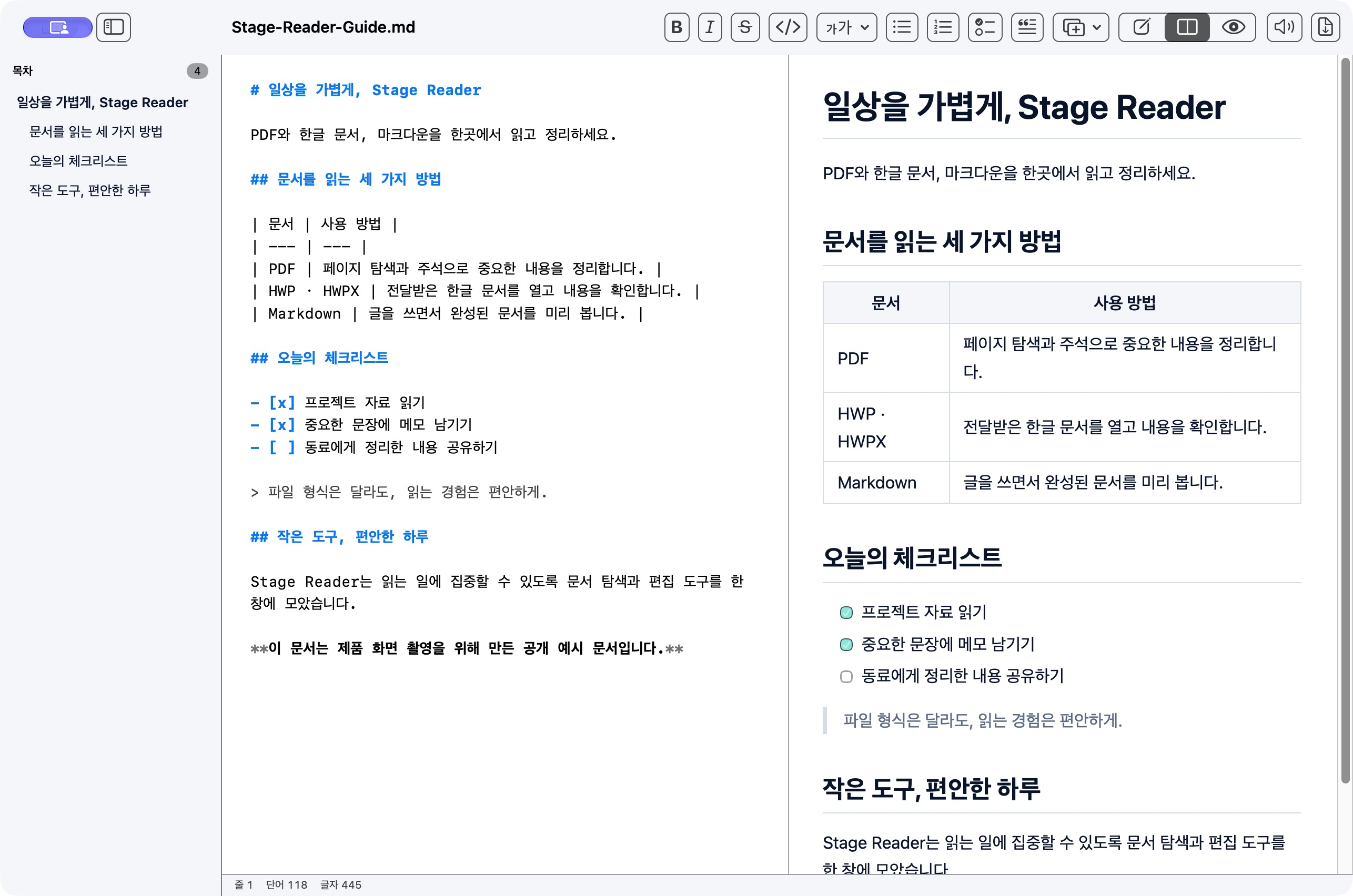
Drop a file into the app or use ⌘O to open a PDF, HWP, HWPX or Markdown document.
Use search and the outline, annotate a PDF or format your Markdown.
Save changes to the original or export your work as PDF or HTML where supported.
macOS · Windows
macOS and Windows have different feature sets. iOS and Android editions are being prepared.
Hangul layout can vary with installed fonts and unsupported drawing objects. This is a Hangul viewer rather than a full HWP word processor.
Choose the right option for your device.
Checking published installers…
Hangul support focuses on viewing, search, PDF export and printing. PDF annotation, page editing and Markdown editing are separate features.
The current Windows viewer focuses on reading. It does not have the same PDF editing and Markdown features as macOS.
On macOS, ⌘S saves annotations and page changes to the PDF. The app asks before closing a document with unsaved changes.
Read and organise documents as you turn your files into something useful.
 StageApps
App installation & updates
 StageFiles
File management & sync
 StageCleaner
Smart storage cleanup
 StageCapture
Screen capture
Published installers are coming soon.