 Stage
StageFrom capture to annotation
Capture the area you need, then add arrows and notes. Get your point across without switching between apps.

Capture fast, annotate instantly, read text with OCR and record your screen — scrolling capture included.


 Free for personal, business & public use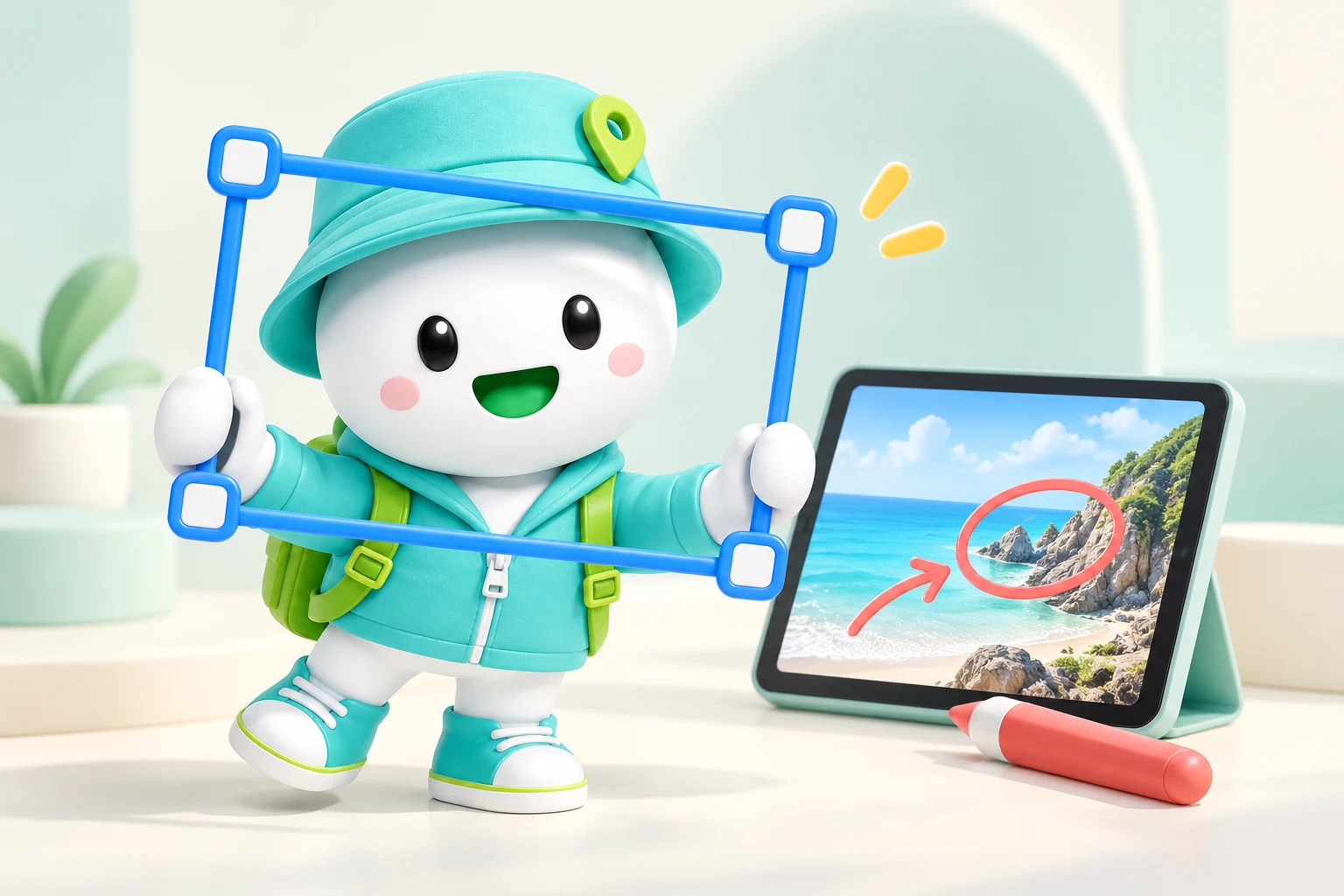
Explain with one capture, include a scrolling page or record a process in motion. Turn what is on your screen into something easier to share.
Capture the area you need, then add arrows and notes. Get your point across without switching between apps.
Capture a scrolling page, extract text with OCR, or record your screen when a still image is not enough.
Give your capture a clean background. Turn a quick explanation or a short tutorial into something easy to follow.
Capture an error, a meeting reference or a walkthrough for a colleague. Frame the area you need and mark the important part to make the message clear.
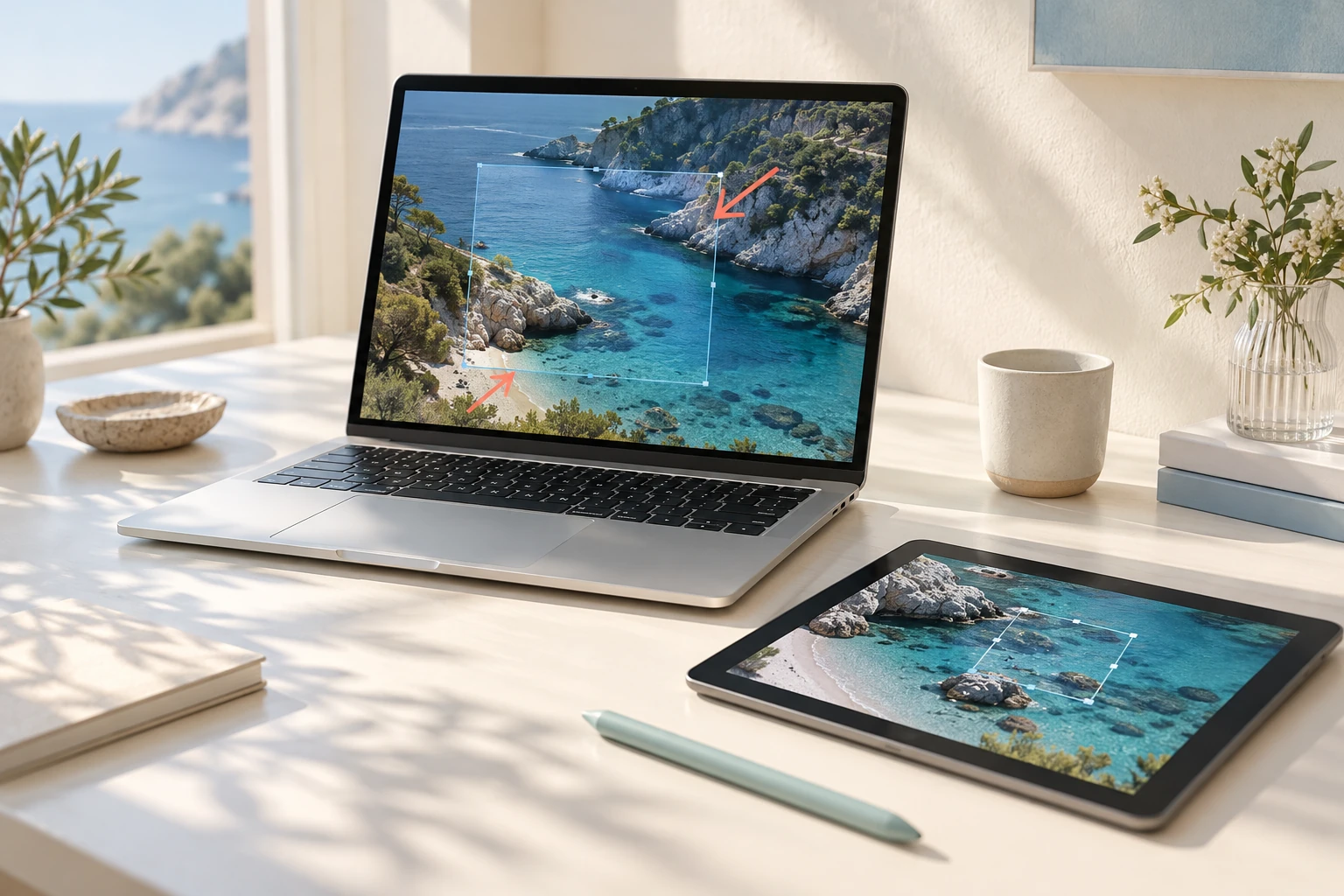
Capture an area, window, full screen or previous region, with delay, magnifier, coordinates and colour picking.
Stitch long views with manual or automatic scrolling, and pin an area above other windows for reference.
Recognise Korean, English, Japanese and Chinese text, plus QR codes and barcodes. Review and copy the result.
Feature specification · Availability varies by OS
Use OCR instead of retyping text from an image. For content beyond a single screen, use scrolling capture to keep the context together.
Explain with arrows, shapes, pen, highlights, text and numbers. Crop, rotate, resize and undo changes.
Use mosaic, blur and spotlight, then review and cover detected faces and sensitive information.
Style margins, corners, shadows and aspect ratio. Measure distances, colours and contrast with built-in tools.
Feature specification · Availability varies by OS
Explain a sequence with a recording, or finish a still capture with a background and annotations. Choose the form that fits your reference or presentation.
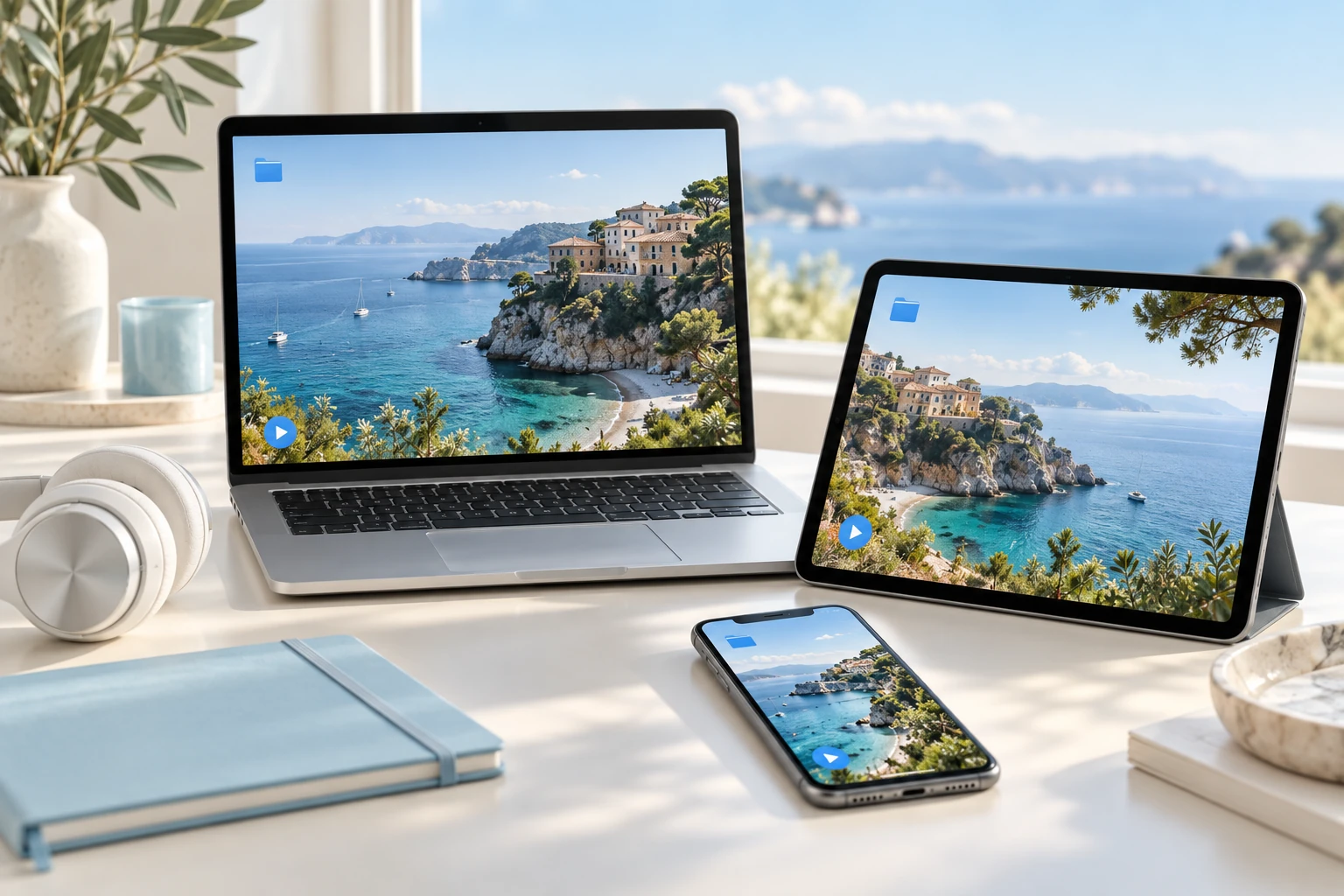
Record an area, window or screen with audio and click indicators. Trim the recording and export supported formats.
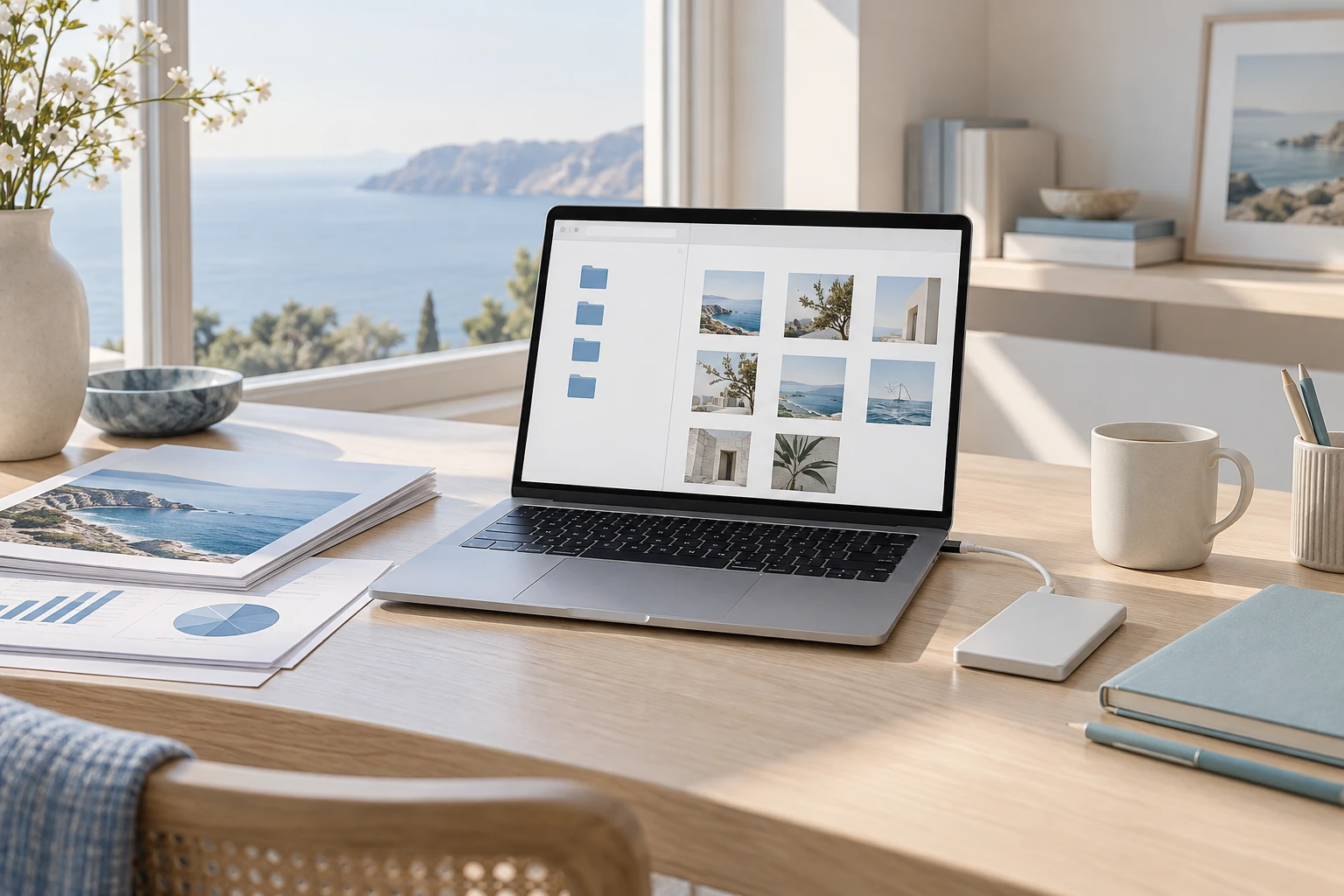
Convert formats, sizes and names for files or folders. Organise results with capture history and dated automatic saves.
Connect Google Drive or S3-compatible uploads. On iOS, capture workflows centre on editing and stitching screenshots.
Feature specification · Availability varies by OS
Explore practical tasks, from choosing your starting point to preparing the result.
Capture the relevant area, then add arrows, numbers and short notes. Cover private details with mosaic or blur and review the result before sharing.
Use scrolling capture for a long page and copy the text you need from OCR results. Delayed and previous-region capture can help with repeated tasks.
Record the screen to explain a sequence of clicks or actions. Configure supported audio and click indicators, trim the recording and export the result.
Choose the scene and capture a still or record your screen.
Add notes and arrows, or use OCR to read the text you need.
Finish the background and explanation, then prepare your image for sharing.
macOS · Windows · iOS · Android
Capture permissions and feature availability can vary by operating system.
Check the download page for currently published installers.
Choose the right option for your device.
Checking published installers…
Use a capture and annotations for a single scene, or recording for a sequence or movement.
Compare important names and numbers with the original. Recognition varies with type size and image quality.
Screen capture and recording may require operating-system permission. Check the permission needed for your selected feature.
Prepare material for your next task by capturing a screen and adding the context it needs.
 StageApps
App installation & updates
 StageFiles
File management & sync
 StageCleaner
Smart storage cleanup
 StageZip
Archive utility