 Stage
StageLess worrying about formats
Play a wide range of video and audio formats with a native player built on libmpv and FFmpeg. Open the file you want to enjoy.

A native media player built on libmpv and FFmpeg that plays almost any video or audio format.


 Free for personal, business & public use
Move between video and music without switching players. Enjoy a native playback experience for a wide range of media formats.
Play a wide range of video and audio formats with a native player built on libmpv and FFmpeg. Open the file you want to enjoy.
A native player for Mac, Windows, iPhone and Android. Enjoy a familiar experience on your work computer and the phone you relax with.
Keep one player for both your videos and your audio. Enjoy different kinds of media in a single app.
From a travel film to a media file you received, keep the focus on opening and enjoying your collection. Video and music playback belong in one player.
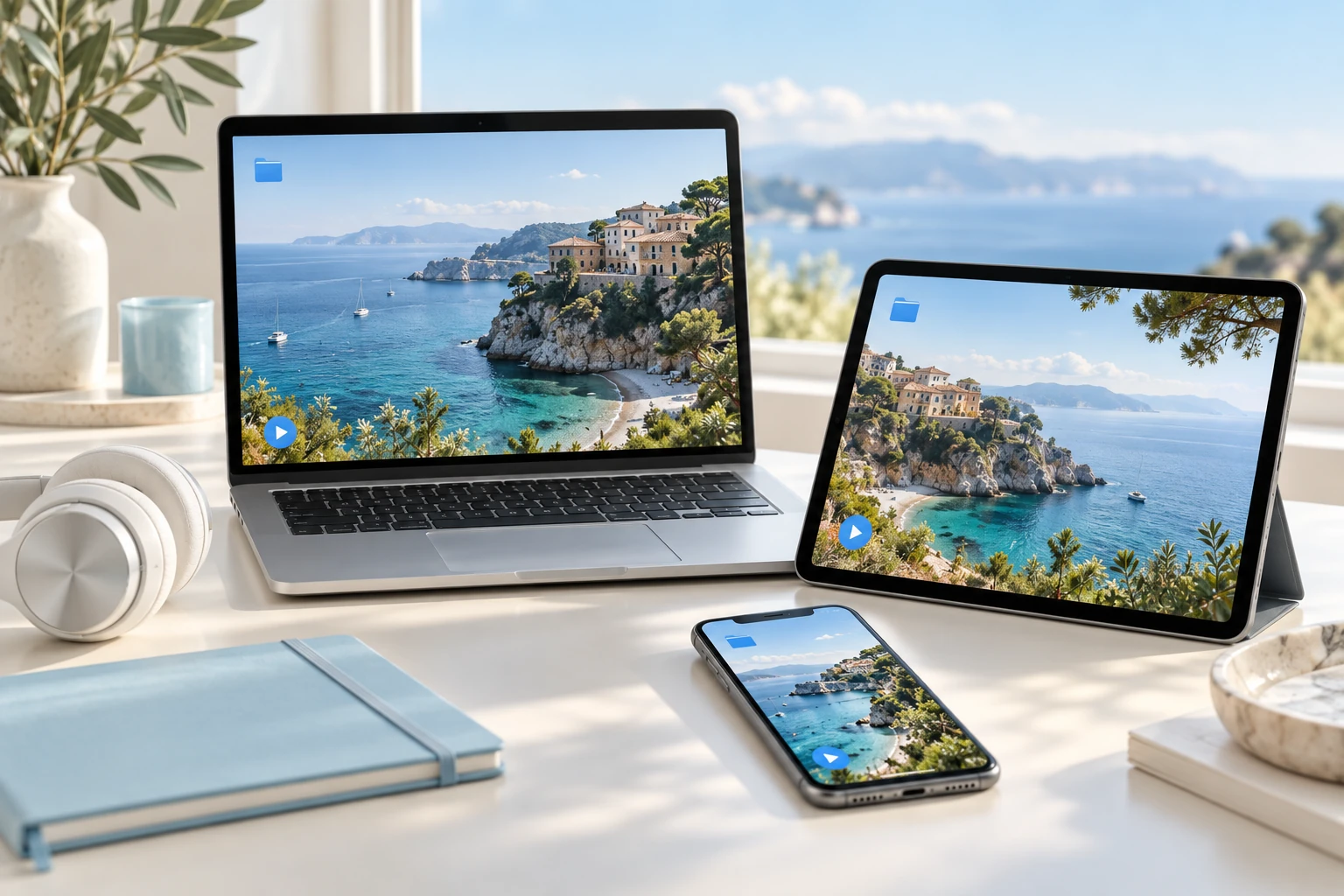
Open video/audio files, folders or URLs, and return through recent files. Playback depends on the source format.
Control speed, time or frame stepping and A-B repeat for study or closer inspection of a scene.
Load or save playlists and use bookmarks, previous/next files, single/all repeat and shuffle.
Observed in Mac app menus · Features vary by OS and version
Play media through an environment built on libmpv and FFmpeg. Open videos and audio that fit your source files and device.
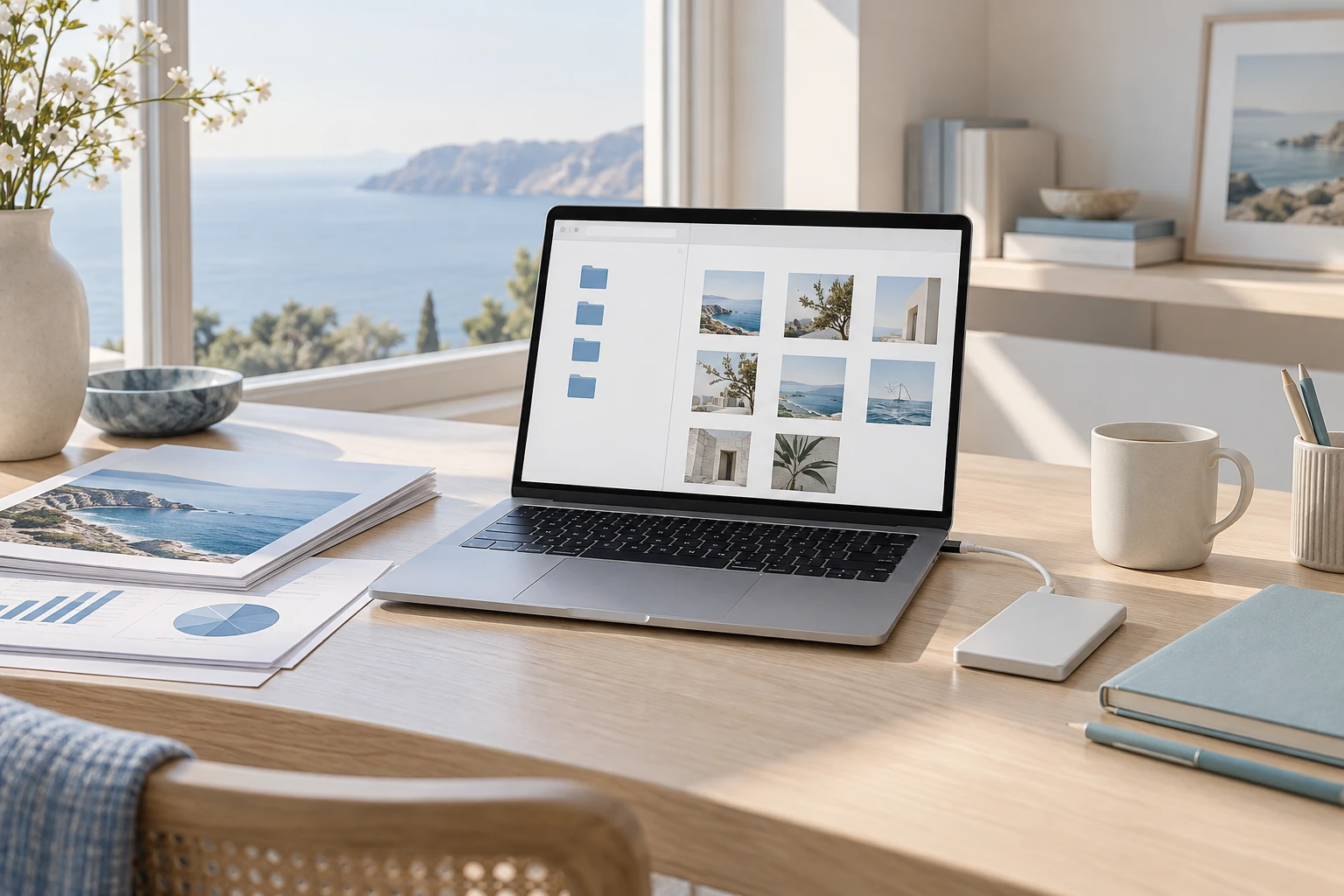
Adjust aspect ratio, zoom, rotation, flip, sharpening, denoise and deinterlace, or switch to full screen.
Adjust external subtitles, tracks, timing, size, position and encoding. Check availability and conditions for AI subtitles.
Use tracks, channels, sync, EQ presets, normalisation, voice emphasis, night mode and music visualisation.
Observed in Mac app menus · Features vary by OS and version
Choose the installer for your operating system and CPU, then prepare your media. Format support and results depend on the source codecs and environment.
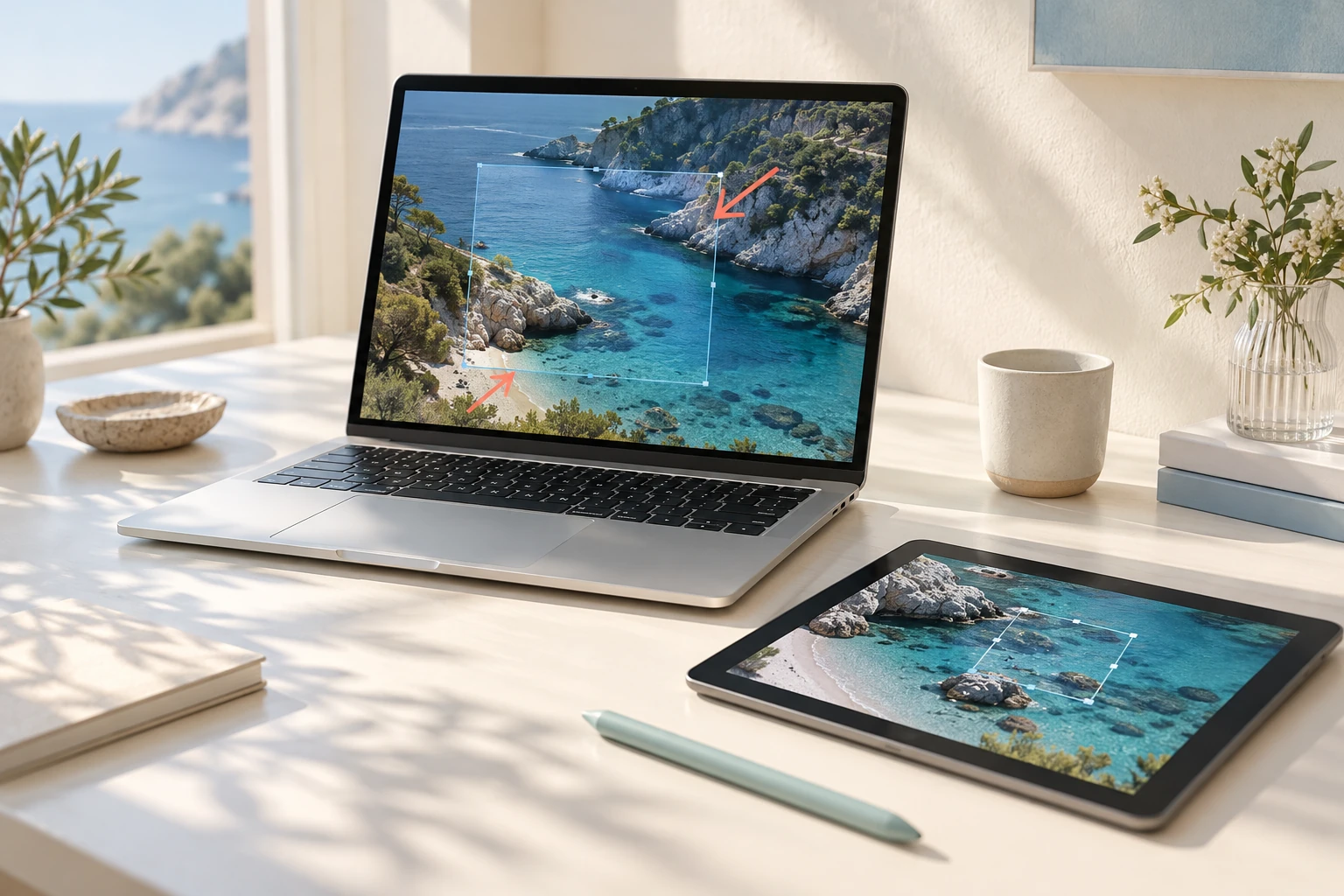
Use scene or subtitle-inclusive captures, create preview images and access lossless A-B segment saving.
Set a timer by duration or file/playlist end, choosing pause, app quit or Mac sleep as the action.
Access Google Drive, YouTube download and music-library menus. Check account linking and feature-specific conditions.
Observed in Mac app menus · Features vary by OS and version
Explore practical tasks, from choosing your starting point to preparing the result.
Open media files and use playback, volume and seeking controls. Check format support for the source codec and your environment.
Use supported subtitles, playlists and playback settings to suit your viewing. Actual app captures show the playback controls.
Check the published version for your OS and CPU, then prepare your media. Detailed guidance explains platform features and integrations.
These are actual macOS app captures. Layouts and available features may differ on other platforms.
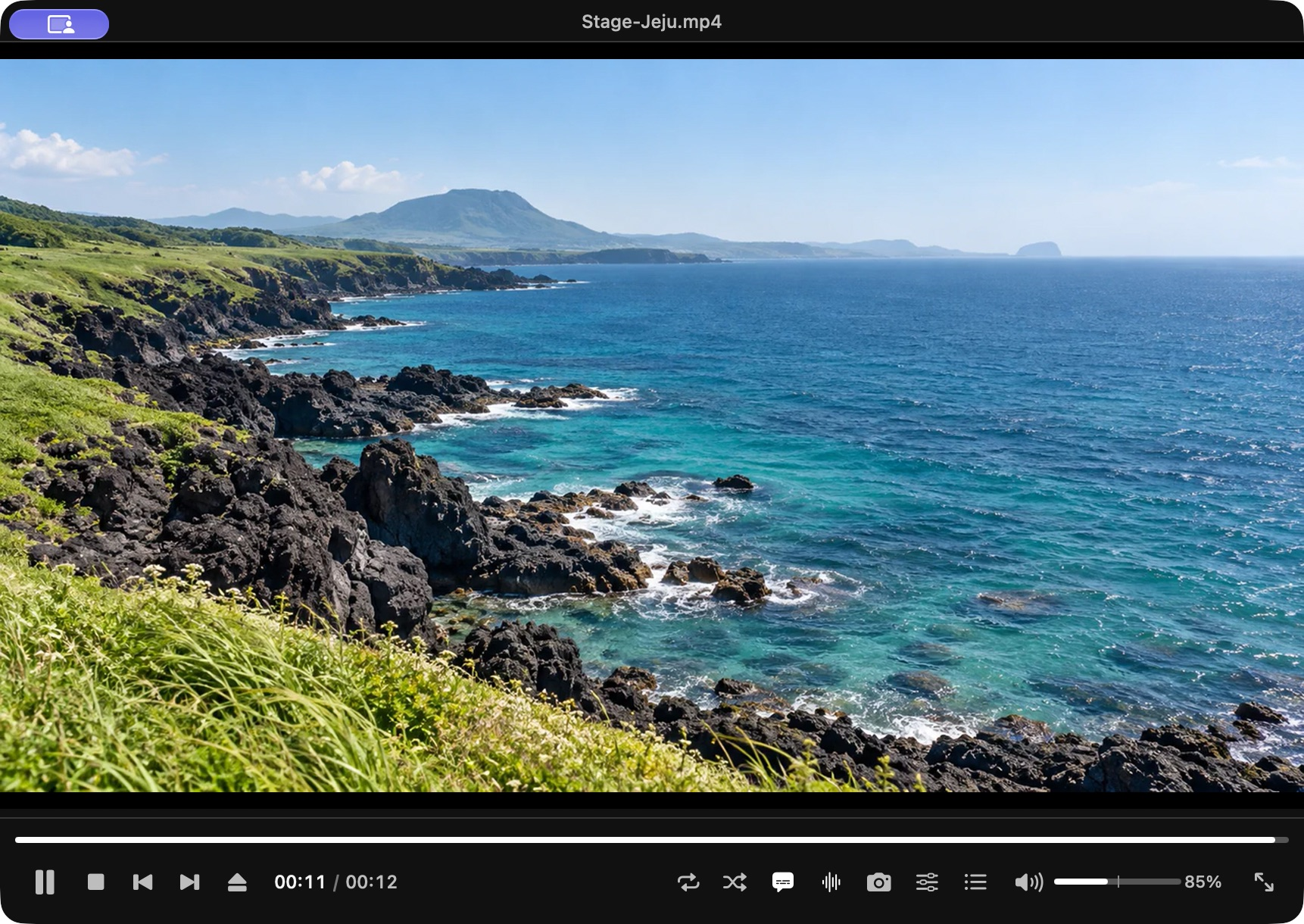
Choose the video or audio file you want to play.
Install the matching StagePlayer version and open your media.
Check picture, sound and file playback, then enjoy.
macOS · Windows · iOS · Android
Damaged files and specialised codecs may not play.
Check separate announcements for the availability of server-connected features such as StagePlayer Cloud.
Choose the right option for your device.
Checking published installers…
Yes. It is a multimedia player for both video and audio.
Files with the same extension can use different codecs or be damaged. Send support the product version and operating system.
StagePlayer plays your media files. Content purchases and subscriptions are not included.
Play your videos and music as you explore your media collection and review your work.
 StageSee
Photo viewer
 StageClip
Free YouTube viewing & downloads
 StageApps
App installation & updates
 StageFiles
File management & sync